

Community • 6 Min. Lesezeit
Lade neue Mitglieder mit einem Link ein – statt jeden einzeln
Kurz gesagt
Jede Community in foroom hat einen festen Einladungslink. Den teilst du dort, wo deine Leute ohnehin schon lesen — im Newsletter, in der Willkommens-Mail oder im Kursmodul — statt jeden einzeln einzuladen.
Wer den Link öffnet, schickt dir eine Beitrittsanfrage. Die Anfragen sammeln sich an einer Stelle, und du gibst sie frei, wenn es dir passt.
🔍 Zwei Wege, wie neue Mitglieder zu dir finden
Im Dialog Mitglieder einladen hast du zwei Wege: Einladungen per E-Mail an konkrete Adressen — bis zu zehn auf einmal — oder Per Link einladen für alle, die deinen Link bekommen.
Der Link lohnt sich, sobald du viele Interessent:innen über Kanäle erreichst, die du schon hast: Willkommens-Mails, Newsletter, Module in ablefy oder der Link in deiner Bio. Du teilst ihn einmal, foroom sammelt die Beitrittsanfragen für dich ein.
⚙️ So richtest du deinen Einladungslink ein
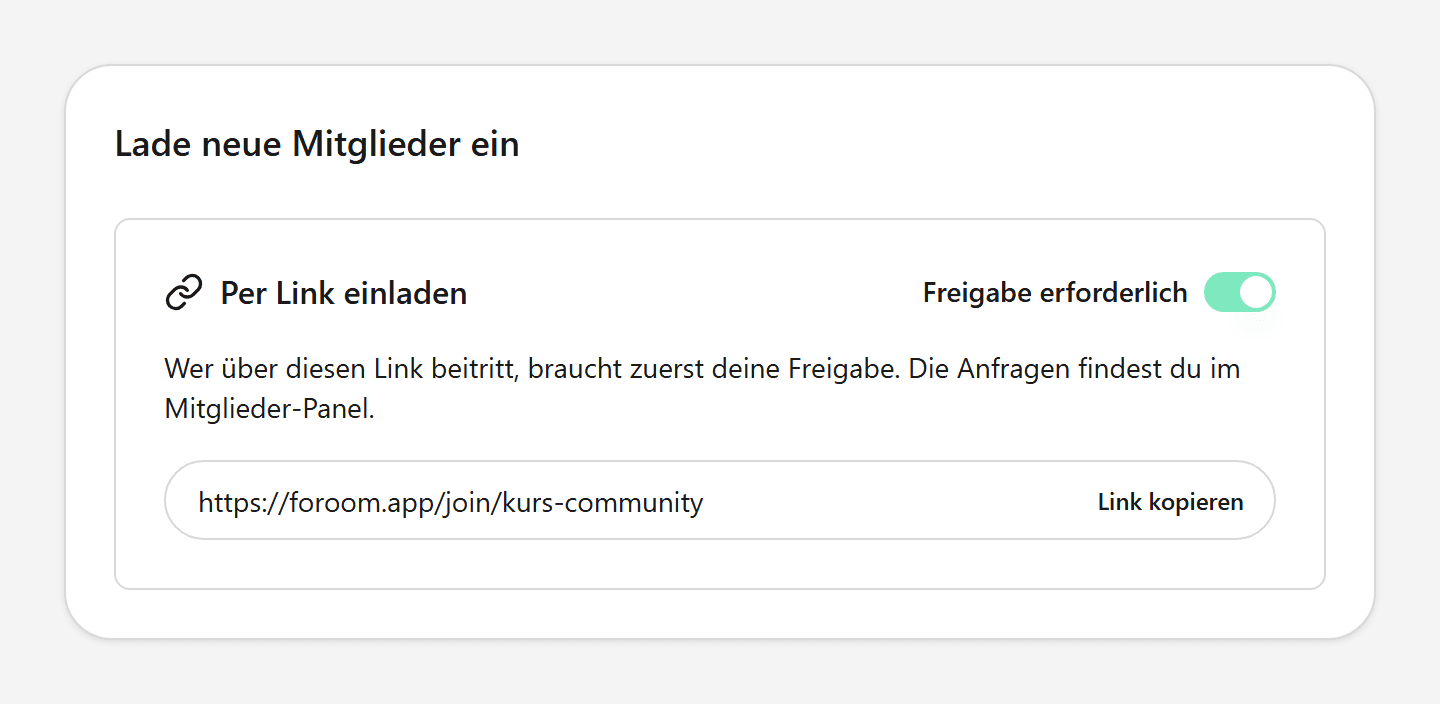
Öffne deine Community und klicke auf Mitglieder einladen — im Mitglieder-Bereich rechts oder auf der Seite Mitglieder. Scrolle zum Abschnitt Per Link einladen: Dein Link liegt dort schon bereit, du musst nichts erzeugen.
⚠️ Wichtig
Hängt deine Community an einem ablefy-Produkt (Einstellungen → Zugang → Zugang nach dem Kauf), führt derselbe Link direkt zur Kasse statt zur Beitrittsanfrage. Für den Workflow in diesem Artikel bleibt Beitritt auf Anfrage aktiv.
Lass die Freigabe eingeschaltet
Behalte Freigabe erforderlich an, wenn du erst schauen möchtest, wer bei dir anklopft. Der Link darf öffentlich unterwegs sein — die Entscheidung bleibt bei dir.
Ein Klick auf Link kopieren legt ihn in deine Zwischenablage. Von dort wandert er überall dorthin, wo deine Käufer:innen und Interessent:innen ohnehin schon lesen.
Was passiert, wenn jemand deinen Link öffnet
💡 Hinweis
Ohne Freigabe erforderlich geht es direkter: Wer schon eingeloggt ist, ist mit einem Klick dabei, alle anderen registrieren sich zuerst. Für kleine Beta-Runden ist das angenehm unkompliziert — bei Newsletter und Kurs-Funnel fährst du mit der Freigabe entspannter.
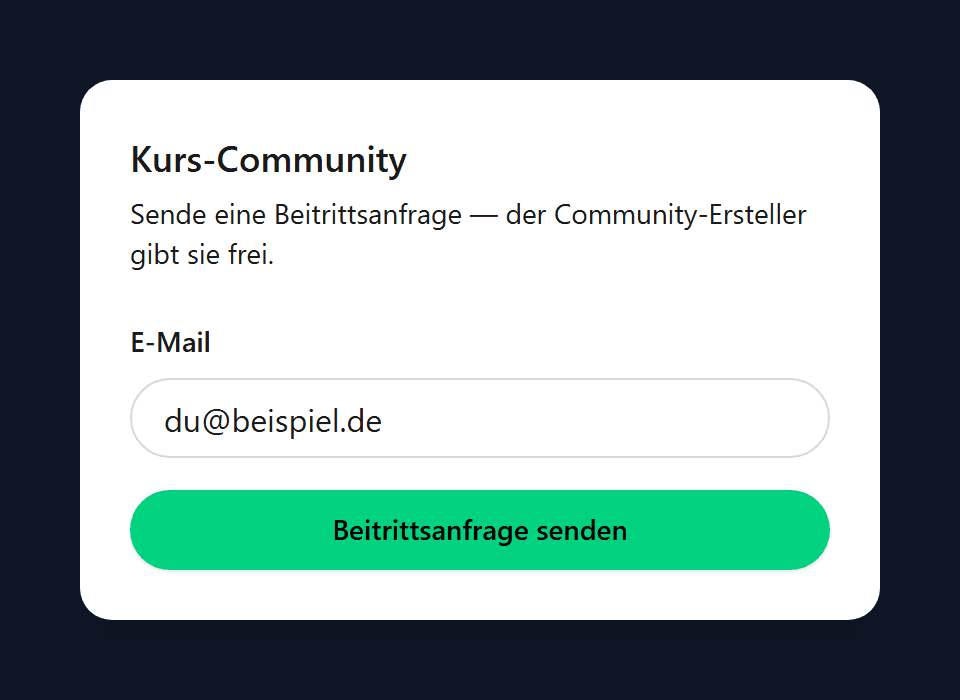
Wer deinen Link anklickt, landet auf der Landingpage deiner Community, trägt seine E-Mail-Adresse ein und klickt auf Beitrittsanfrage senden.
Danach erscheint der Hinweis, dass die Anfrage auf Freigabe wartet. Sobald du zustimmst, geht automatisch eine E-Mail raus — bis dahin bleibt deine Community geschlossen.
⚙️ Anfragen freigeben, wenn es dir passt
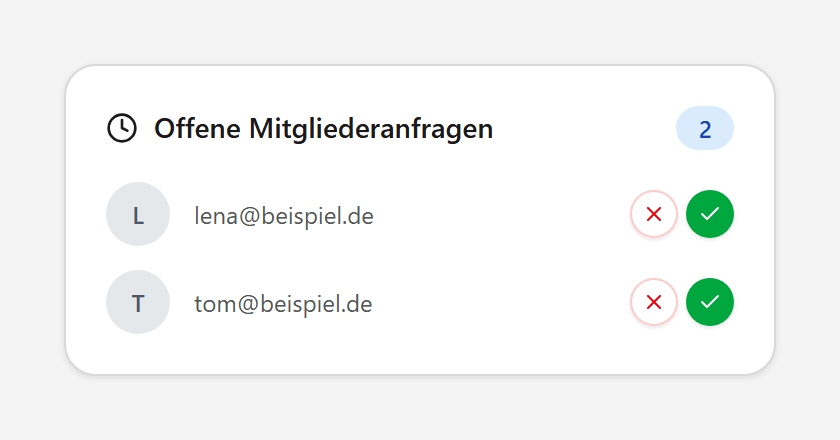
Unter Beitrittsanfragen sammeln sich alle Anfragen an einer Stelle, auch die über deinen Link. Der Haken heißt willkommen, das X heißt: diesmal nicht.
Freigeben können Ersteller:innen und Admins. Wer noch kein foroom-Konto hat, bekommt mit der Freigabe automatisch eine E-Mail zum Einrichten — Listenpflege fällt für dich weg.
Wo dein Link am besten aufgehoben ist
Platziere ihn dort, wo deine Leute sowieso schon lesen: Tag 3 deiner Willkommens-Serie, ein PS im Newsletter oder ein freundlicher Hinweis im ersten Modul deines ablefy-Kurses.
Hast du ablefy-Produkte mit deiner Community verknüpft, findest du im selben Dialog pro Produkt einen Zugangslink samt Sprung zur Danke-Seite — genau richtig für alle, die gerade gekauft haben.
Der Link bleibt immer derselbe, du baust ihn also nicht für jede Kampagne neu. Nur wenn du den Community-Slug in den Einstellungen änderst, tauschst du ihn einmal in deinen Vorlagen aus.
👀 Dein Ablauf auf einen Blick
Du schickst weiter die Inhalte, die du ohnehin schreibst — den Rest übernimmt der Einladungslink.
In vier Schritten
- Link kopieren: im Dialog Mitglieder einladen unter Per Link einladen auf Link kopieren klicken.
- Link platzieren: einmal in Willkommens-Mail, Newsletter oder Kursmodul einfügen — nicht für jede Kampagne neu.
- Anfragen sammeln lassen: Wer klickt, landet auf deiner Landingpage und schickt dir eine Beitrittsanfrage.
- Freigeben: unter Beitrittsanfragen den Haken setzen — und die Person ist dabei.
Verkaufst du deine Community über ein ablefy-Produkt, bekommen Käufer:innen den Zugang direkt nach dem Kauf. Der Einladungslink ist dein Weg zu allen anderen: Leads, Warteliste und Bestandskund:innen.