Community • 6 Min. Lesezeit
So funktionieren Rollen und Berechtigungen in deiner Community
Kurz gesagt
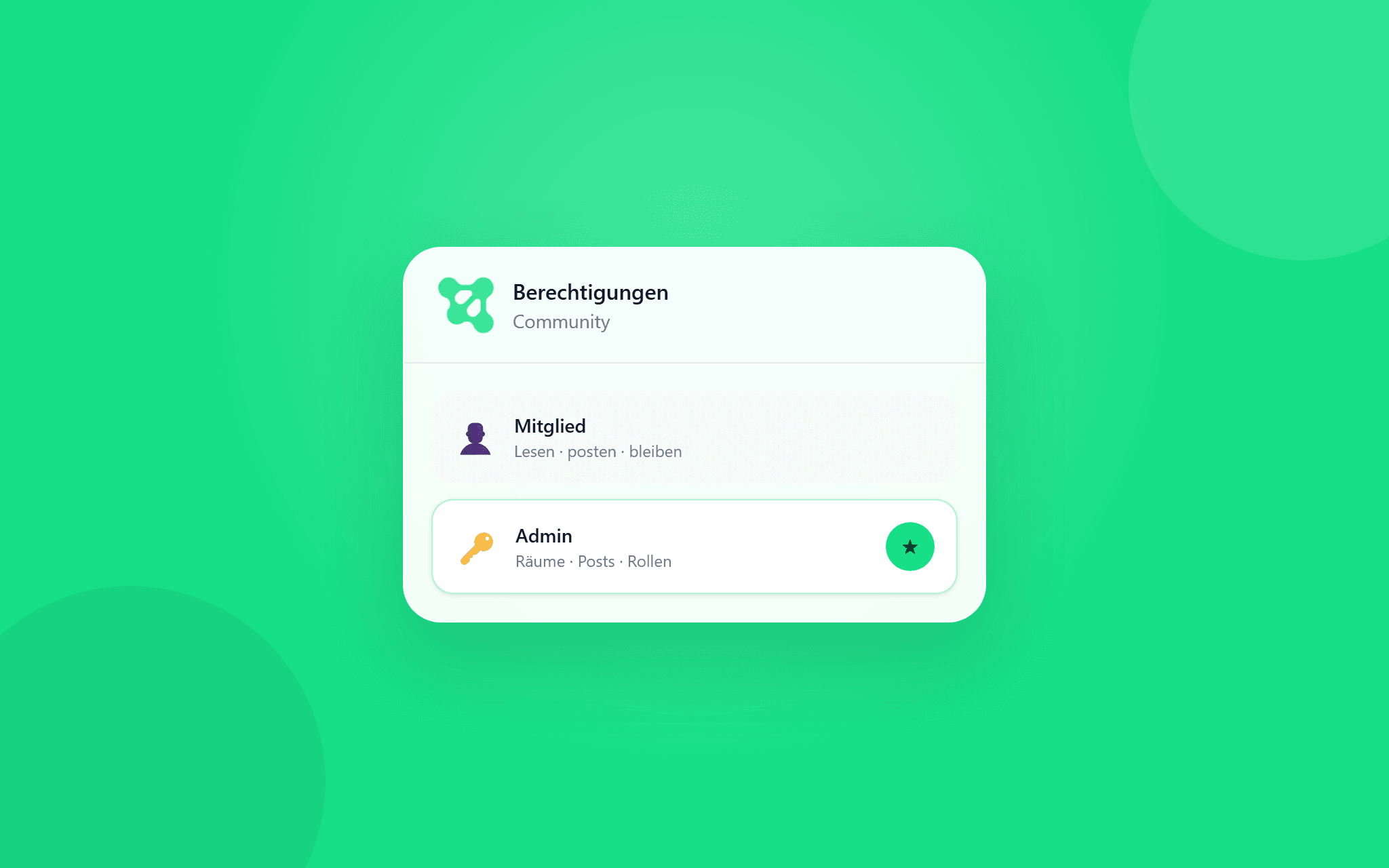
In foroom gibt es drei Rollen: Ersteller, Admin und Mitglied. Die jeweilige Rolle bestimmt, wer deine Community verwalten, Räume erstellen oder Beiträge veröffentlichen kann.
Als Ersteller oder Admin kannst du Adminrechte vergeben und für jeden Raum festlegen, wer dort posten darf.
👥 Die drei Rollen im Überblick
Ersteller
Der Ersteller besitzt die Community und hat Zugriff auf alle Einstellungen. Einige Einstellungen, etwa bestimmte Community-Einstellungen, sind ausschließlich für diese Rolle verfügbar.
Admin
Admins unterstützen bei der Verwaltung der Community und können unter anderem Räume erstellen, Beitrittsanfragen bearbeiten und Adminrechte vergeben.
Mitglied
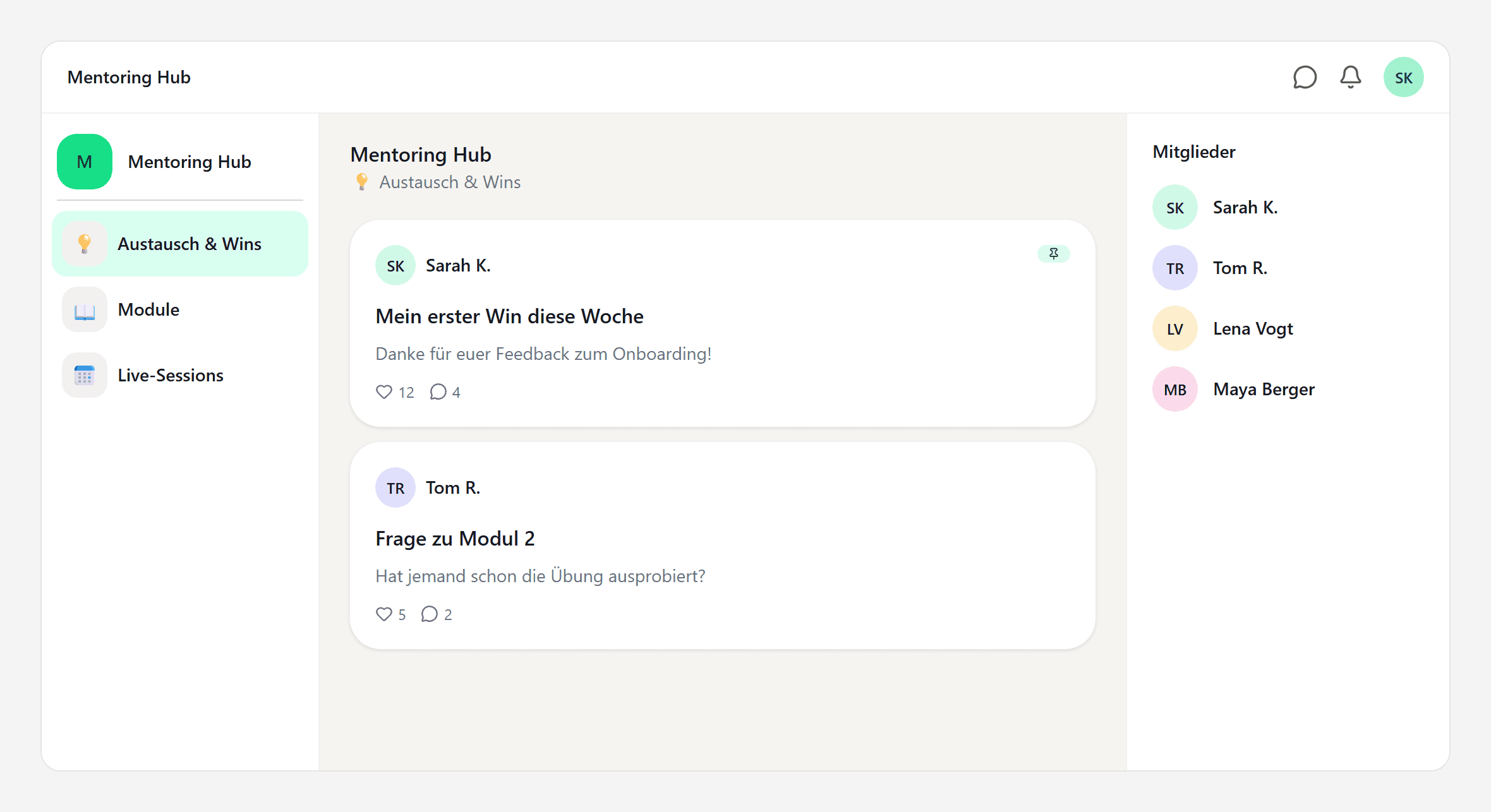
Mitglieder können Inhalte lesen, kommentieren und – je nach Einstellung des Raums – eigene Beiträge veröffentlichen. Verwaltungsfunktionen und Community-Einstellungen sehen sie nicht.
🛡️ Adminrechte vergeben oder entziehen
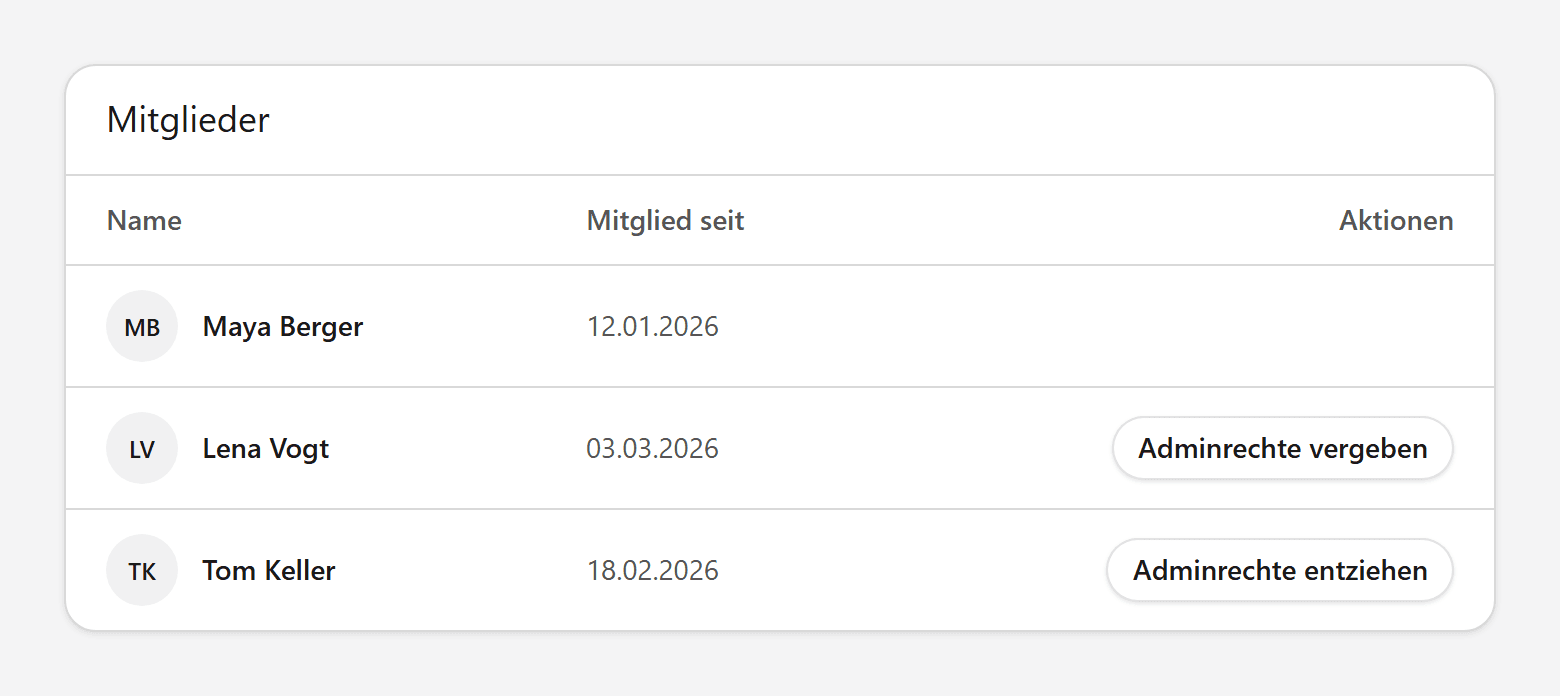
Möchtest du Unterstützung bei der Verwaltung deiner Community, kannst du einem Mitglied Adminrechte geben.
Öffne dazu Mitglieder und klicke bei der gewünschten Person auf Adminrechte vergeben. Über Adminrechte entziehen kannst du die Rolle später wieder zurücksetzen.
Die Rolle Ersteller ist davon ausgenommen und lässt sich so weder vergeben noch entziehen.
✍️ Festlegen, wer in einem Raum posten darf
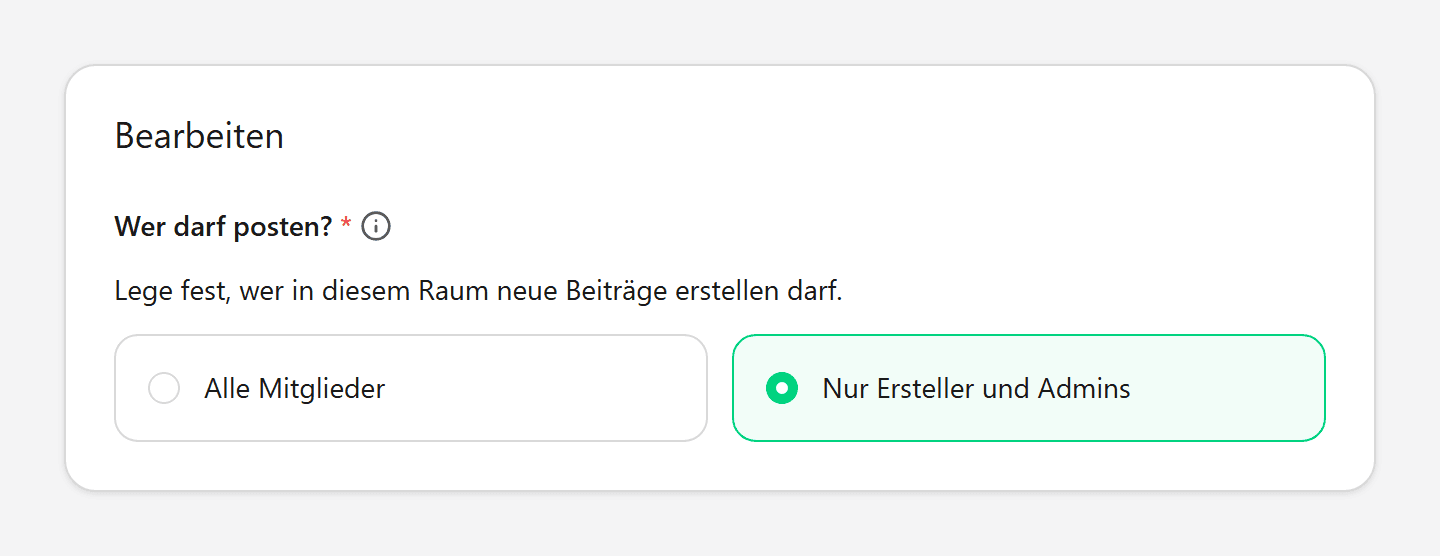
Nicht jeder Raum muss für neue Beiträge aller Mitglieder geöffnet sein. Für jeden Raum kannst du separat festlegen, wer dort posten darf.
Öffne den gewünschten Raum und gehe zu Bearbeiten → Wer darf Beiträge erstellen?. Dort hast du zwei Möglichkeiten:
Alle Mitglieder – ideal für Fragen, Diskussionen und Austausch
Nur Ersteller und Admins – ideal für Ankündigungen, Kursmodule oder andere Inhalte, die du zentral verwalten möchtest
Mitglieder sehen diese Einstellung nicht.
🏠 Räume erstellen und verwalten
Neue Räume können ausschließlich Ersteller und Admins anlegen. Dafür steht ihnen in der Räume-Leiste die Option Neuen Raum erstellen zur Verfügung.
Mitglieder sehen diese Funktion nicht. So bleibt die Struktur deiner Community bei den Personen, die sie verwalten.
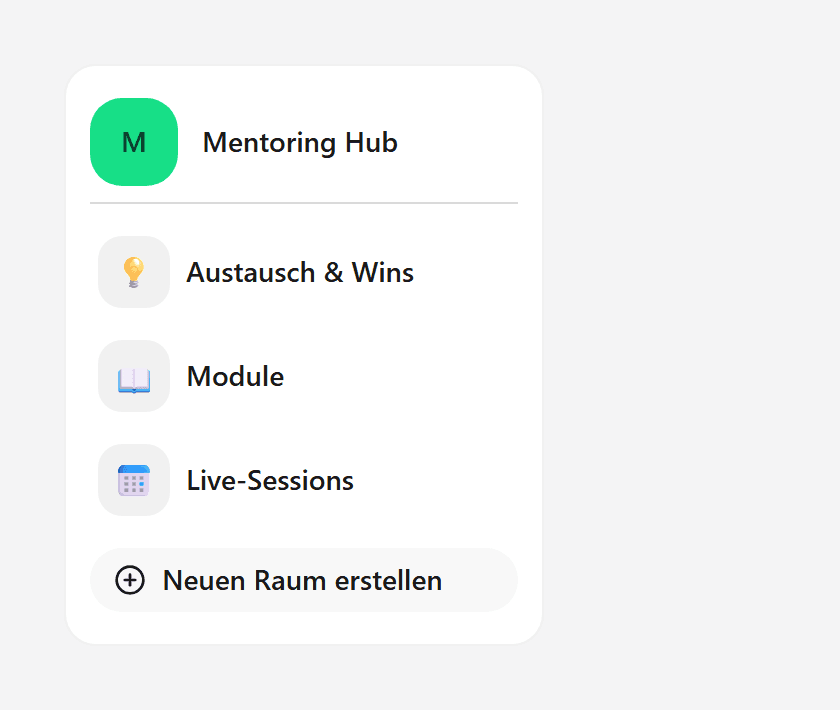
👀 So sieht deine Community für Mitglieder aus
Mitglieder sehen die für sie zugänglichen Räume, Beiträge und Diskussionen. Verwaltungsoptionen wie das Erstellen von Räumen, die Vergabe von Adminrechten oder bestimmte Community-Einstellungen bleiben ausgeblendet.
So kannst du Verantwortlichkeiten verteilen, ohne dass jedes Mitglied Zugriff auf die Verwaltung deiner Community erhält.